here is the PDF workcard
StandardPractiseCardTSKFNXFIM10209001910901EA01
BreakOutBoxTSKFNXFIM10209001910901EA01


here is the PDF workcard
StandardPractiseCardTSKFNXFIM10209001910901EA01
BreakOutBoxTSKFNXFIM10209001910901EA01
How Often should I install a EGPWS database?
Our ICA’s for the installatins on BMB and BZZ do not require ANY update, EVER.
Many N registered aircraft are never updated, until upgrade time.
That seems a little slack.
The Honeywell website informally recommends this:
|
|||||||
So, how about twice a year?
here is the schedule of database release dates.
http://www51.honeywell.com/aero/common/documents/egpws-documents/Maintenance-documents/SIL-documents/MKV-VII-documents/SIL_MKV_MKVII.pdf
here are the kown issues;
bottom of the page “RAAS Known Issues”
Click Here to download database:
htthttps://www.honeywellaes.com/redirection?Operation=1&heading=Business&subheading=egpws
same password as NZ2000 data base. call 800-247-0230 to get to account access
Must be OMNI Drive LF for linear format.
Only good for MK5 and MK7
If you have a 6 or 8or 22, you must also have smart cable.
SIL468
AES website
For realtime troubleshooting, Here is the Winviews text:
11 APPENDIX A: WINVIEWS
WinVIEWS (Windows Virtual Interface to the Enhanced Warning System) is a software tool developed by Honeywell
to monitor or view values within the EGPWC, and perform certain test interface functions.
Overview: The WinVIEWS software provides a monitor function that does not alter the operation of the EGPWS.
The monitoring of the values assists in the testing of the EGPWS by allowing the operator to quickly determine if the
correct signal and scaling is being used by the EGPWS. Additionally, WinVIEWS provides a detailed status of the
software configuration and input signals, which enables quick identification of system anomalies. WinVIEWS is also
utilized for programming the Configuration Module in MK VI, MK VIII, and MKXXII applications.
To obtain a copy of the WinVIEWS software, please visit www.egpws.com, select the Installation Information page,
then select the Diagrams, Drawings & Software sub-page. WinVIEWS is available as a self extracting .zip file. A
User’s Guide is available there as well.
In addition to the WinVIEWS software, a command file may be utilized. The command file is a simple text file that
includes each Current Value Table (CVT) Item used in a test procedure. The file must be ‘text only’ such as those
created in the Microsoft Windows NotePad program. It should have a filename extension of .wvc or .cmd. The
webpage mentioned above also contains generic command files for use in ground and flight testing the various
EGPWS models.
To use WinVIEWS a RS-232 cable (PN 704-2670-001 is required) to connect the PC 9-pin comm port to the
EGPWC 15-pin test port.
Typical WinVIEWS operation with the EGPWC:
1. Connect the PC to the EGPWC via the RS-232 cable defined above.
2. On the PC, start the WinVIEWS program (requires Windows 95 or later).
3. WinVIEWS opens in the Terminal Mode. Various commands are available in this mode. Type “HELP” or “?” for
command help. In particular, CVT Items may be added or deleted to/from the display to assist with system
analysis.
4. Under the File Menu select the “Load Command File” option and load the appropriate Command File.
5. Use F6 to select the Display Mode: each CVT item listed in the Command File will be continuously updated at a
rate of at least once per second. The value shown for each CVT Item listed is the current value used by the
EGPWS. F6 toggles between the Display and Terminal Modes.
___________________________________________________
here is a typical interface
Good Fuel Valve Gone Bad….
My family has owned and operated a 7AC since 1976, with many happy years of flying, kiddo’s soloing and so on. Good lord willing, there will be many happy years of that in the future.
Since I was old enough to pay attention to the airplane, the fuel valve has been a recurring nuisance. Every couple of years, we have rebuilt the valve, carefully polishing the mating surfaces with jewelers rouge, replacing the packing, leak checking on a bench stand, to varying degrees of success. Recently, the valve had become difficult to turn, but other than that, it worked correctly, and did not leak.

We experienced an occasion where the engine lost power, and later investigation revealed the torque rod was not fully selecting the valve OPEN.
After that difficulty we decided to install a “Burl’s Alaska” PMA fuel valve. Plenty of info at www.burlac.com.
The (choke…) $400.00 valve arrived and we fitted it, after ordering new AN fittings for the fuel line.

The documentation was surprisingly complete, and included the STC, PMA paperwork and an approved drawing to modify the existing torque rod to the fuel shutoff lever.
All in all, the valve and associated machine work looks first rate. The STC documents are in order, and we are hoping for many years in service in the future.
Eric M. Jones, off of Aero-Electric forum:
Cool: 30 degC
Warm:40 degC
Uncomfortably Hot: 50 degC
As hot as you can touch: 60 degC
Immediately painful: 70 degC
Will blister skin: 100 degC
 eric 937-878-&#$*
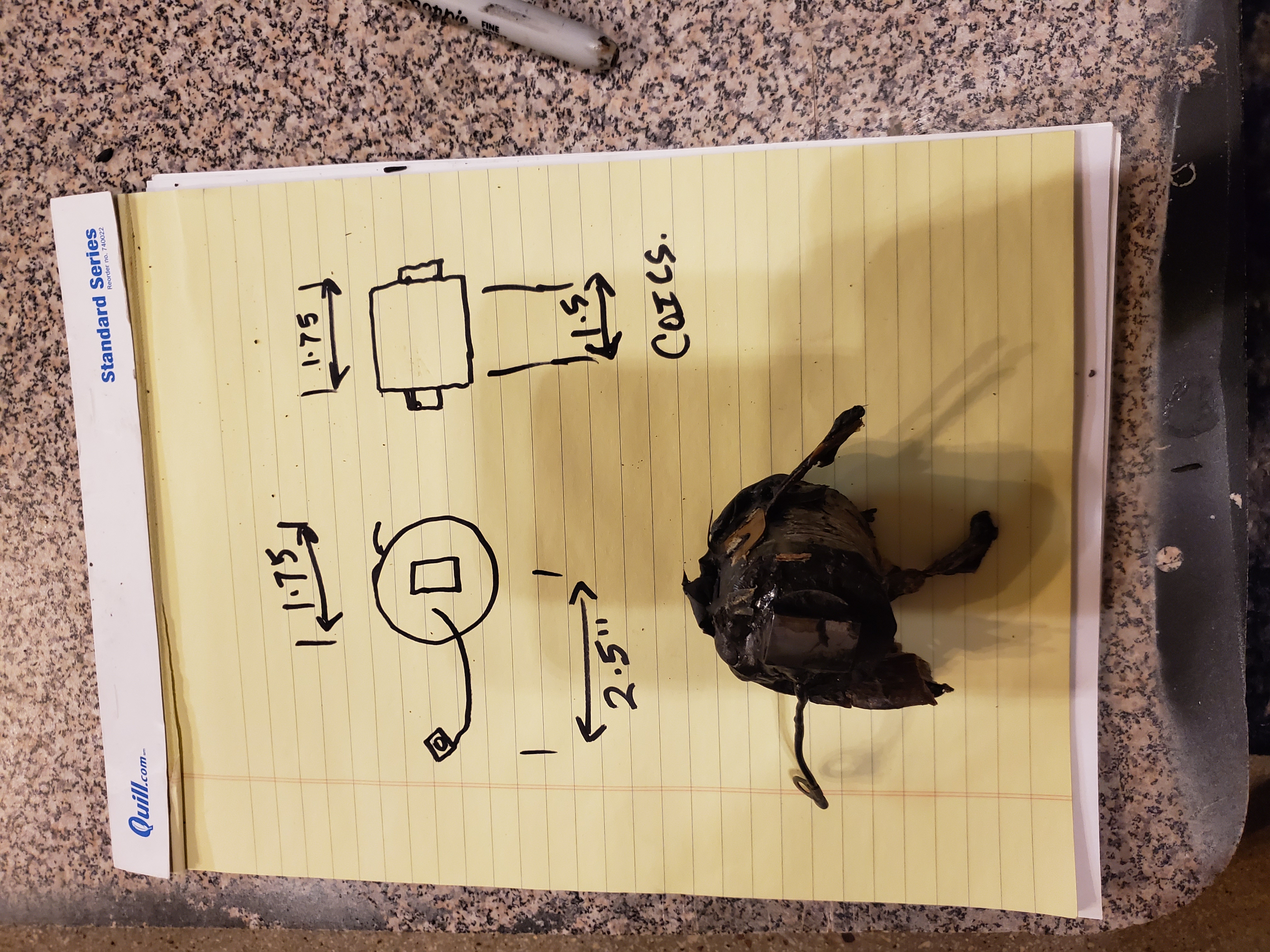
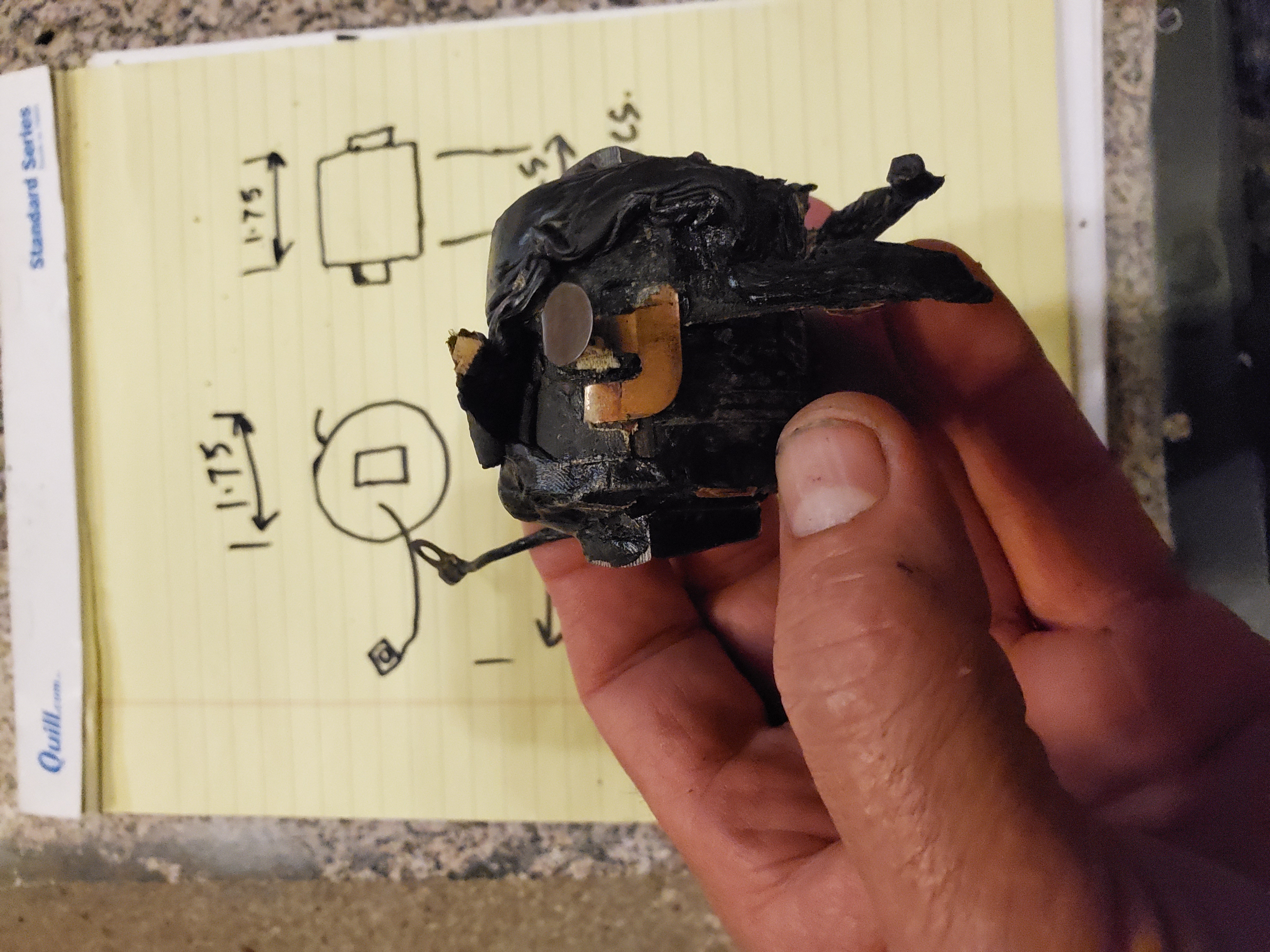
.17 .23 mf is good
28 2930 bad
coil 58-60 k ohms
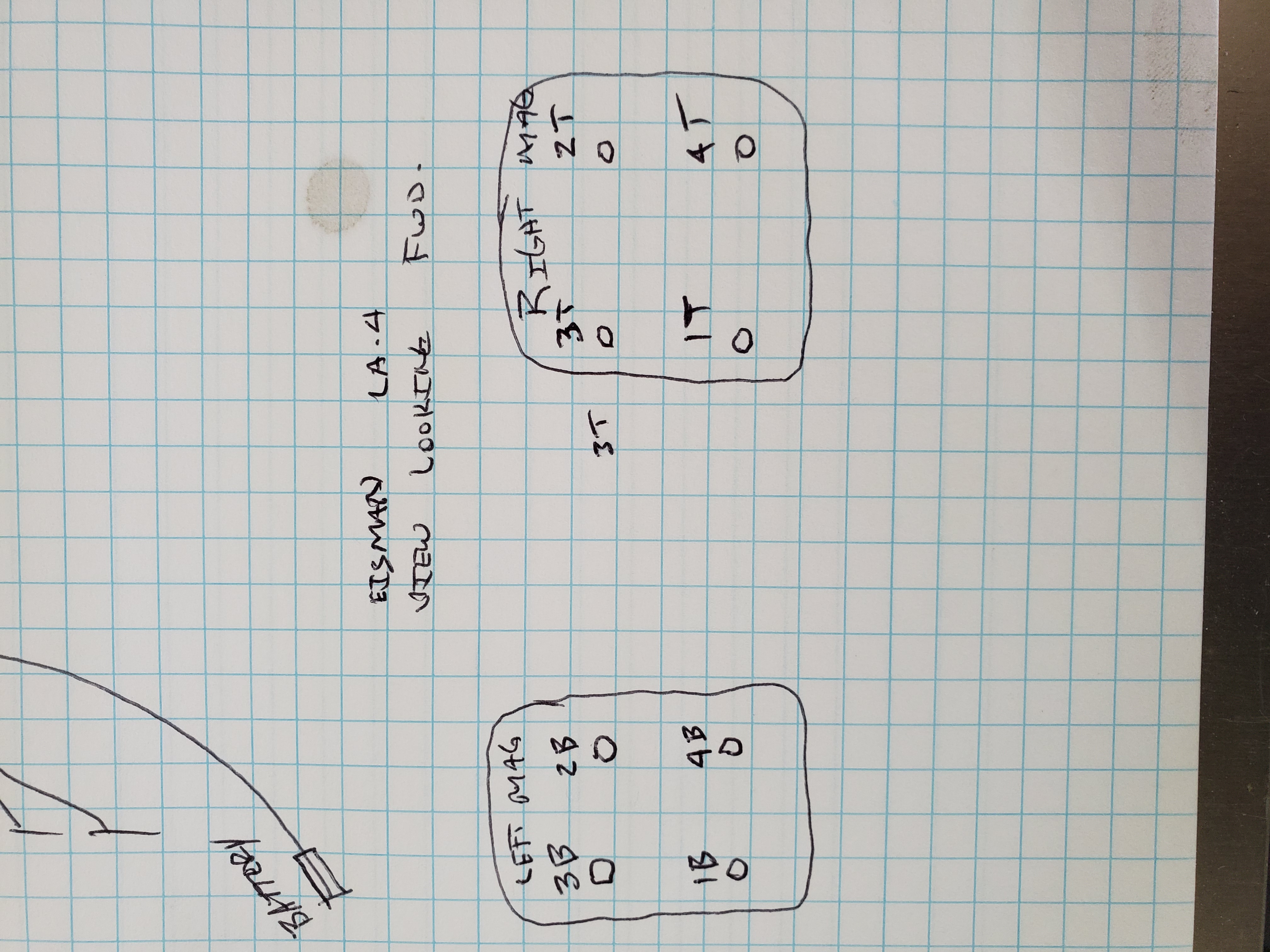
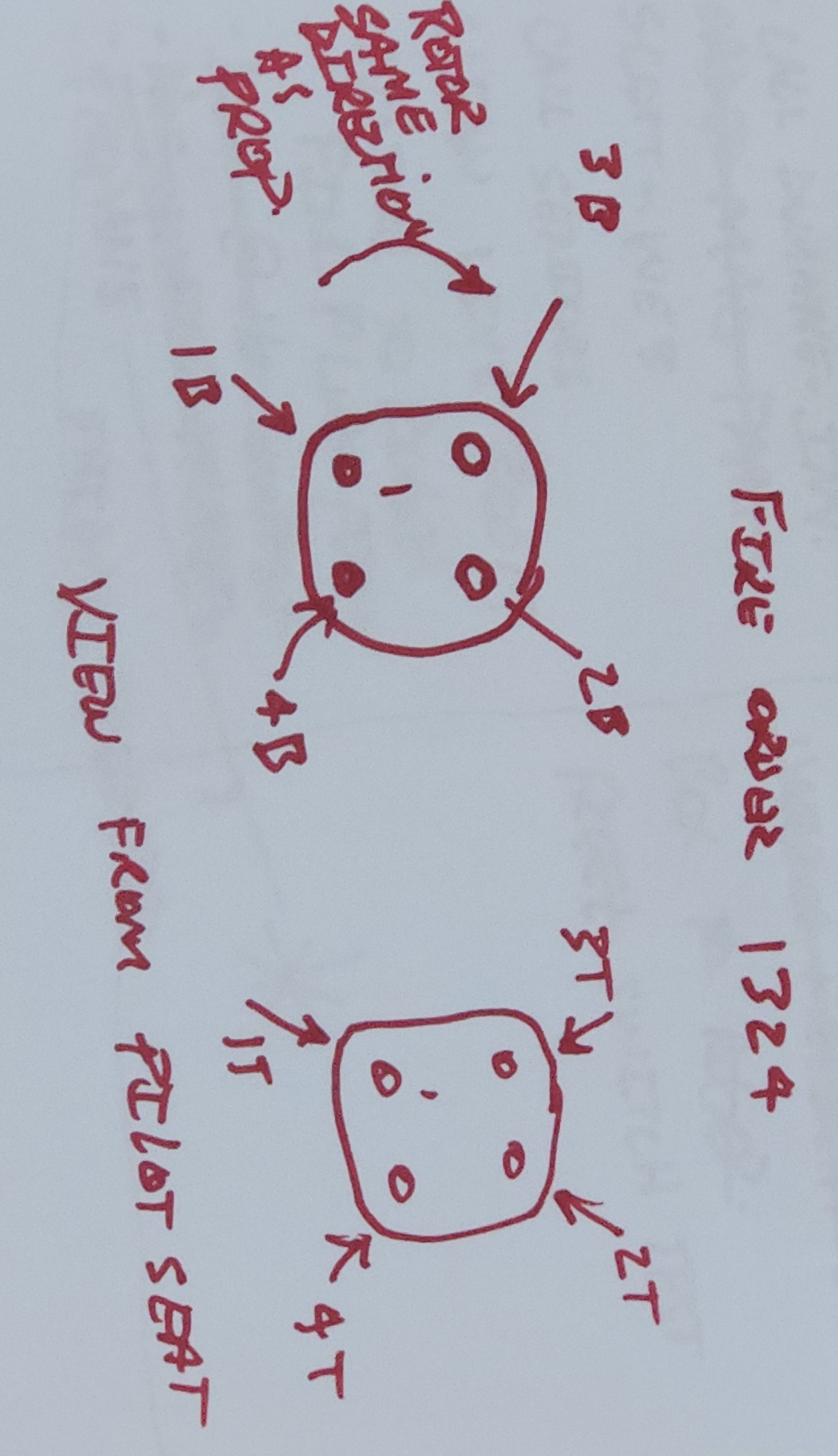
Here is the simple break-in to get the codes:
REMEMBER::::::
If you pull the breakers in the air as a matter of troubleshooting, the codes are lost!
If you land and power down airplane, the codes are lost!
If you are using this diagnostic on the ground after powerdown, YOU ARE WASTING YOUR TIME! It’s like giving a dog investment advise. It’s not helpful, and it anoys the dog.
Here is the Spreadsheet that unwraps the Hex code to plain english…. or as plain english as a Honeywell engineer can make it.
This one runs under Libre Office:
SPZ-8000-Flight-Fault-Summary .ods
This one runs under excel:
SPZ-8000-Flight-Fault-Summary – this one is from Augusta
I think these spreadsheets were written by Terry Markovich. Genius that ran Duncan TEB back in the day. Super clever.
here is an example fault code

Plain Text trouble shooting book:
This will force it each item to start on a new line when using the log book labels.
You need to use the separator: \n
This is set in View > Preferences > W/O & R/O tab > Log Book tab > “Label Separator”.
+++++++++++++++++++++++++++++++++++++++++++++++++++++++++++++++++++++++++++
how do I clear out excessive STORED discrepancy text
You can remove the action items by going to View menu > Action Items > (make selection). If you wanted to delete ALL action items for all parts of EBis, you can do this from the Admin Menu > Data Admin Functions > Delete All Action Items.

+++++++++++++++++++++++++++++++++++++++++++++++++++++++++++++++++++++++++++++++
why can we not have RTS statement on “Maintenance Printout”
Currently the maintenance printout was not meant as a final printout, so there is no statement that can appear on it. The log book labels & the customer invoice were meant to show the actual statements.
Unfortunately the page 1 of x cannot be removed.
As far as limiting their access to the action items, please uncheck the edit action items option in their user account (please see attached). Please let me know if you have any more questions or if I can further assist you.
Cheers,
—
Eric Baal
President of Technology & Development
DatcoMedia, LLC.
++++++++++++++++++++++++++++++++++++++++++++++++++++++++++++++++++++++

